Helix Work Product Tour
Helix Work is a macOS AI workbench built around a complete work cycle: define a goal, provide project context, let an agent use approved tools, follow the execution, and review the delivered artifacts.
The promotional images below use demonstration content and do not show real customer data. Exact UI details, model names, features, providers, and availability may change between releases or vary by account and region.
Download the latest release · Read the privacy policy · 中文导览
1. Start with the work, not an empty chat
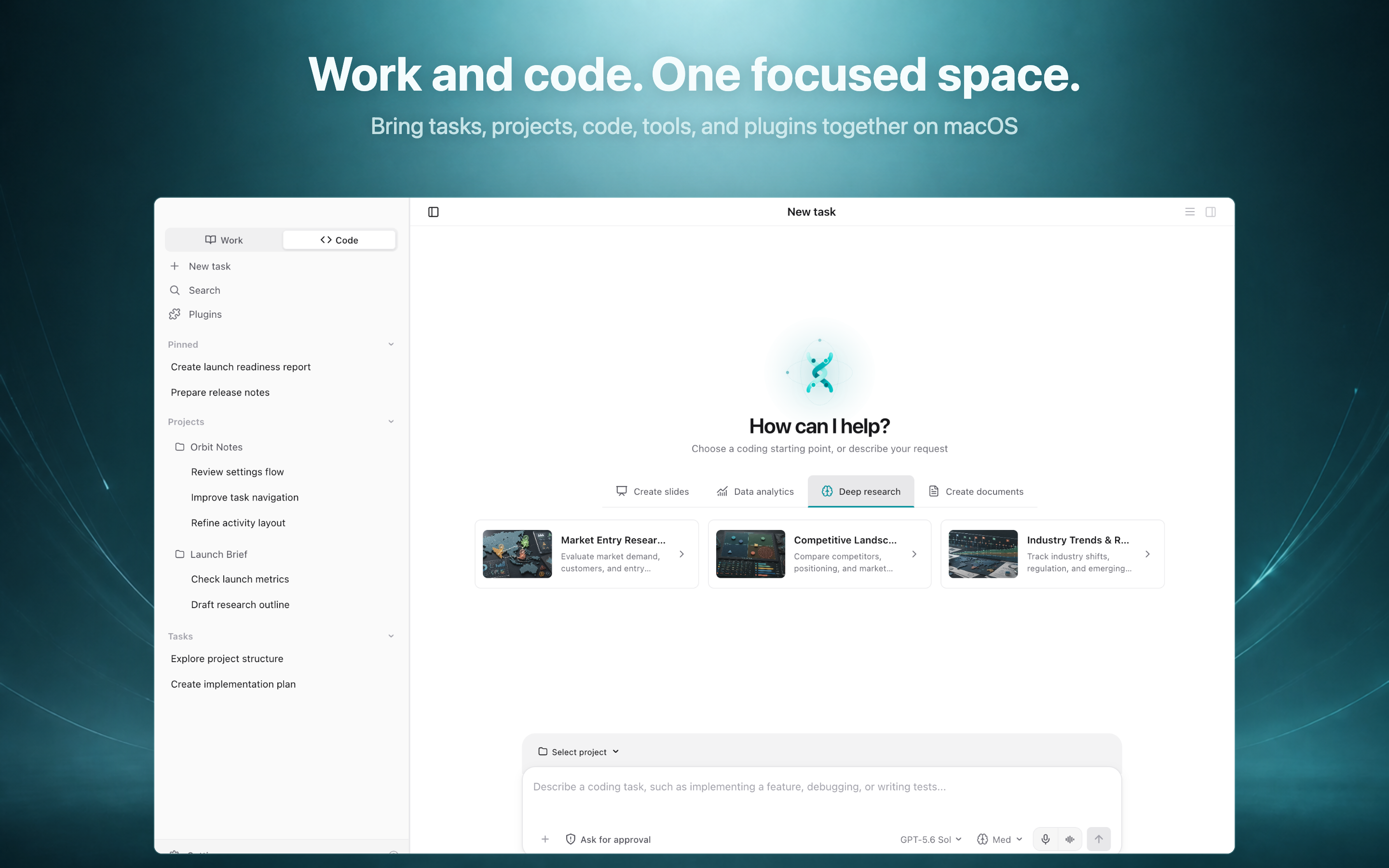
Create a task in your own words, attach an image, select a project workspace, or begin with a ready-to-use workflow. Helix includes starting points for work such as:
- presentations and slide decks;
- data analysis and business reporting;
- deep research and competitive analysis;
- structured documents, proposals, and operating plans;
- software implementation, debugging, review, and testing.
Each task can have its own model, reasoning level, approval mode, workspace, and tool access.
2. Connect the provider that fits your environment
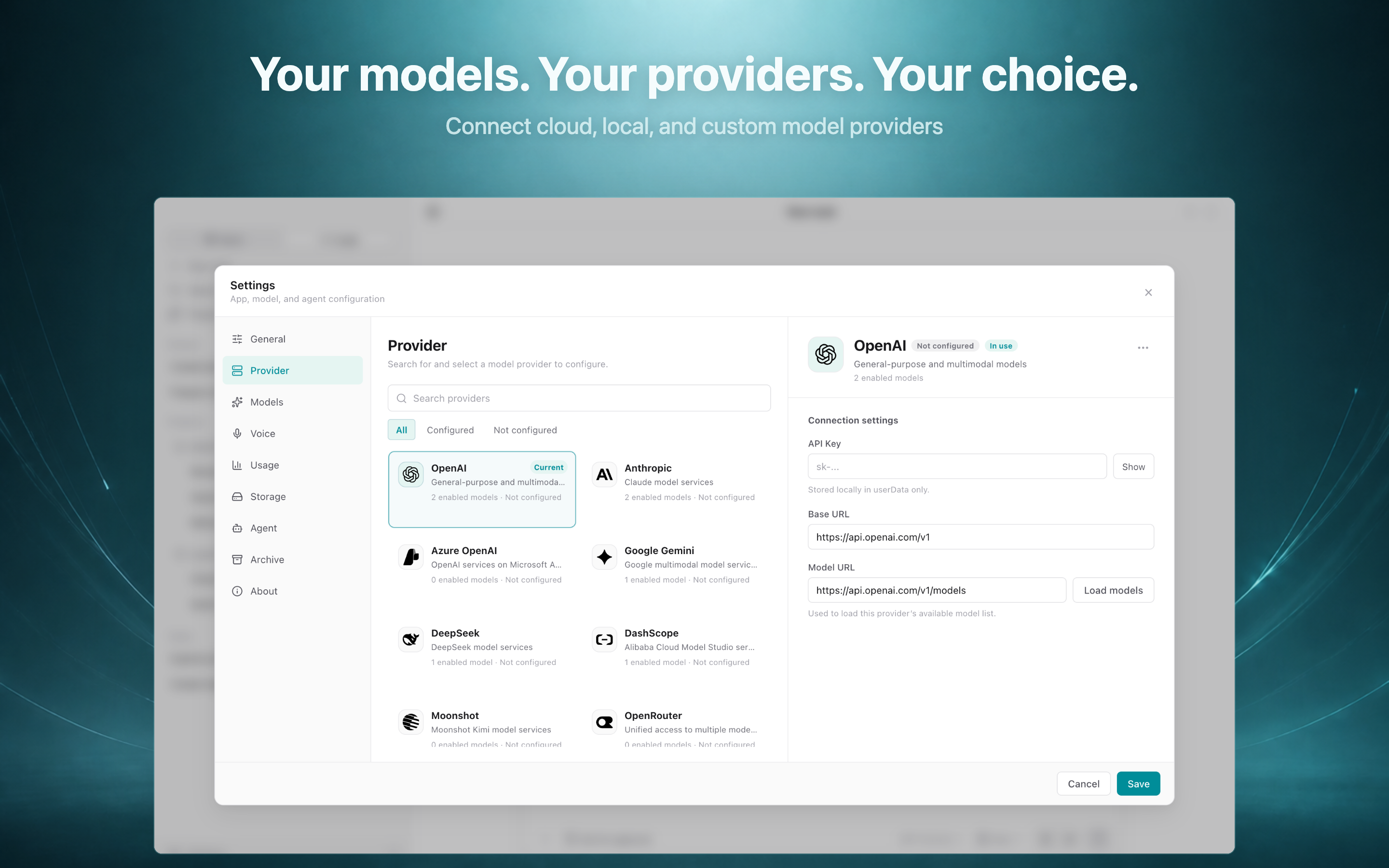
Helix is designed for a multi-provider environment. Current provider configuration options include OpenAI, Anthropic, Azure OpenAI, Google Gemini, DeepSeek, Alibaba Cloud Model Studio (DashScope), Moonshot, OpenRouter, Z.AI, Volcano Ark, Ollama, and custom OpenAI-compatible endpoints.
Provider access, billing, regional availability, rate limits, and model capabilities remain controlled by the respective provider.
3. Choose and manage models in one place
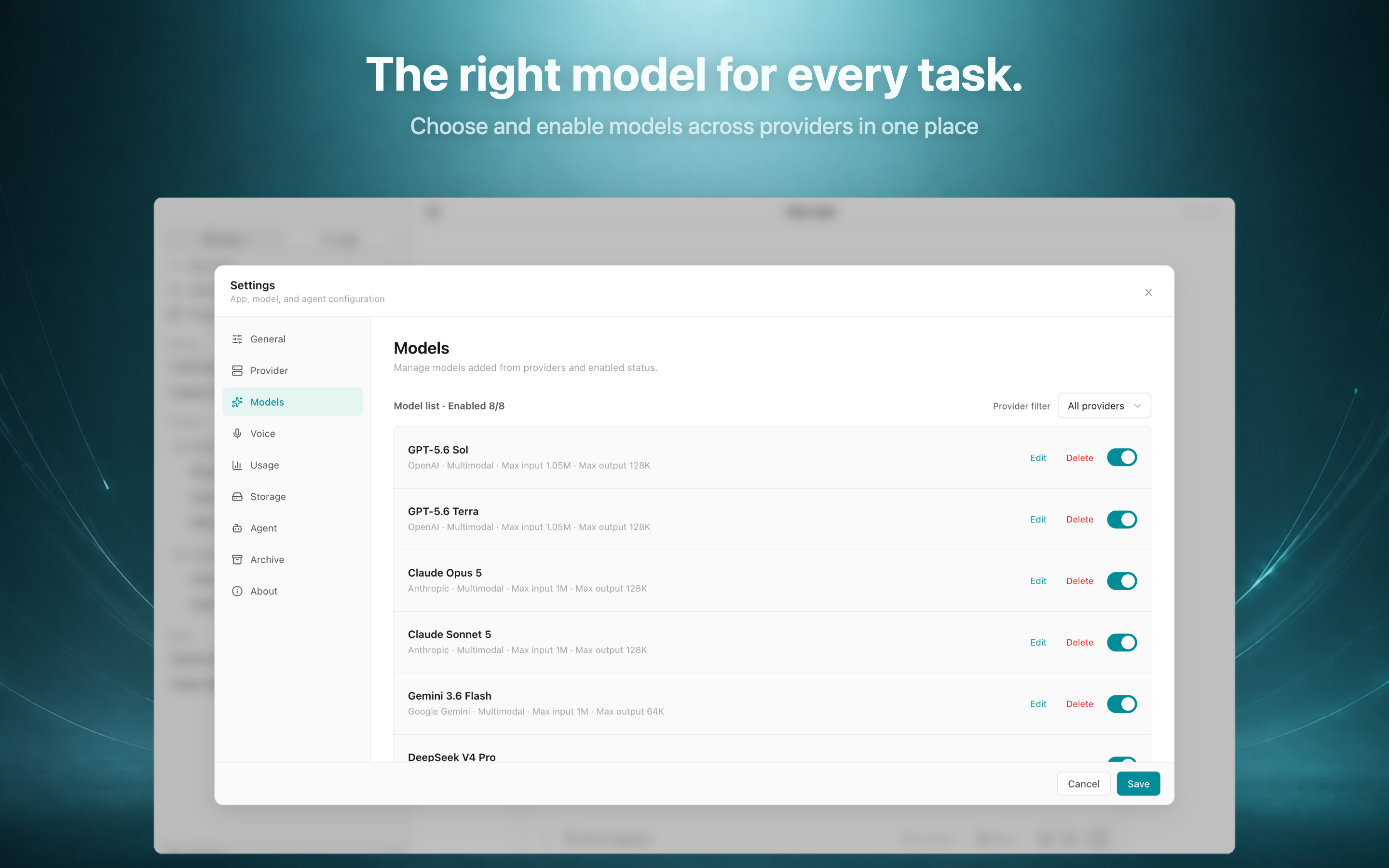
You can load the models available to a configured account, add a model by its API ID, enable only the models you want to use, and choose between model families such as GPT, Claude, Gemini, DeepSeek, Qwen, Kimi, GLM, and Grok. This makes it possible to use different models for research, coding, multimodal work, long-context analysis, or local workflows.
Names and specifications shown in the demonstration image are illustrative. The actual models available in Helix come from your configured providers and account access.
4. Extend Helix with Plugins, Skills, and MCP
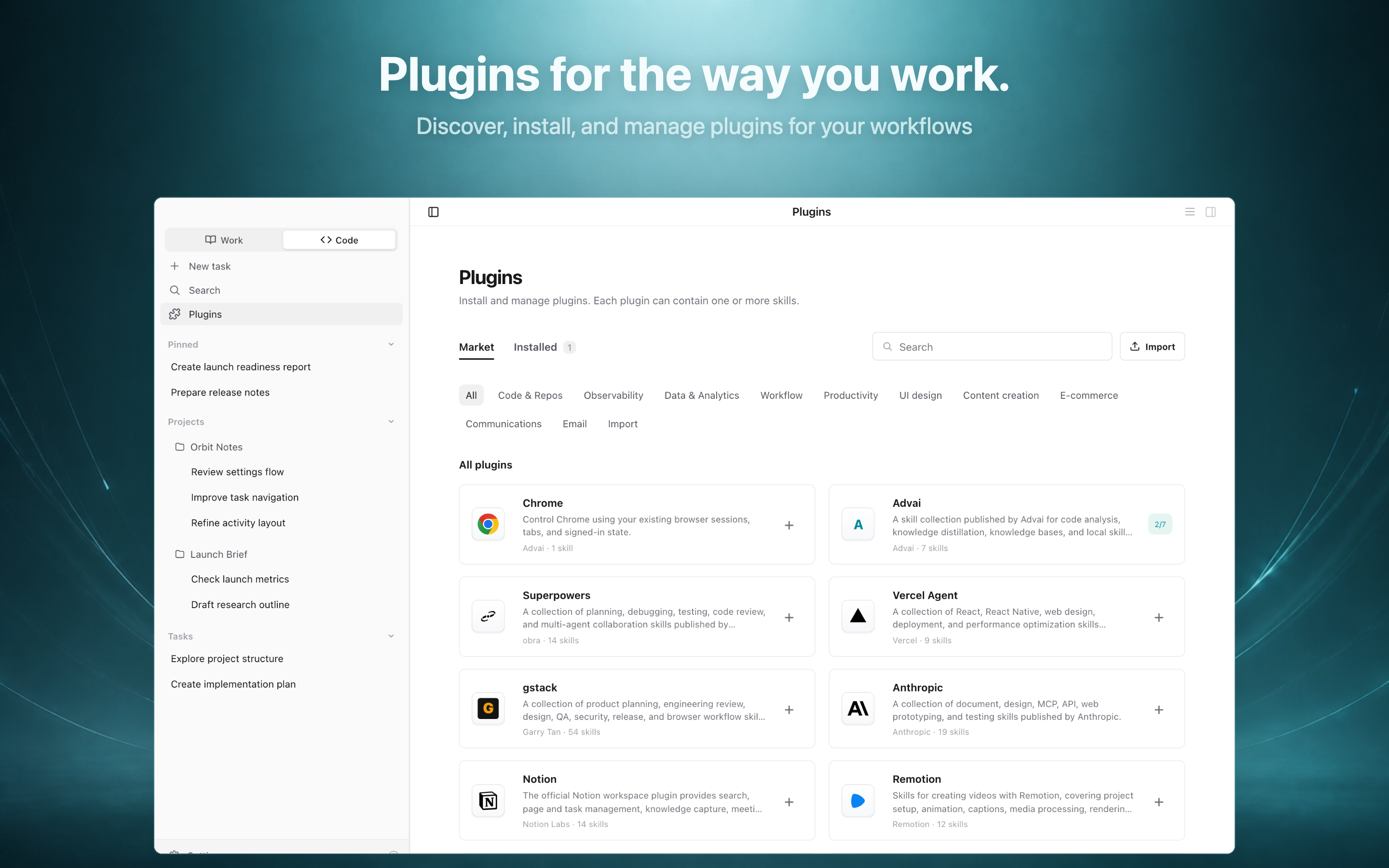
Plugins package one or more Skills into focused capability sets. Depending on what you install and configure, Helix can work with areas such as:
- source code, repositories, testing, and engineering workflows;
- browser research and connected services;
- analytics, dashboards, observability, and databases;
- documents, presentations, media, and content production;
- productivity tools and business systems;
- MCP-compatible tools and custom integrations.
Installed capabilities are not automatically authorized to everything. Their actual access depends on task scope, local configuration, credentials, and the permissions you grant.
5. Understand local usage
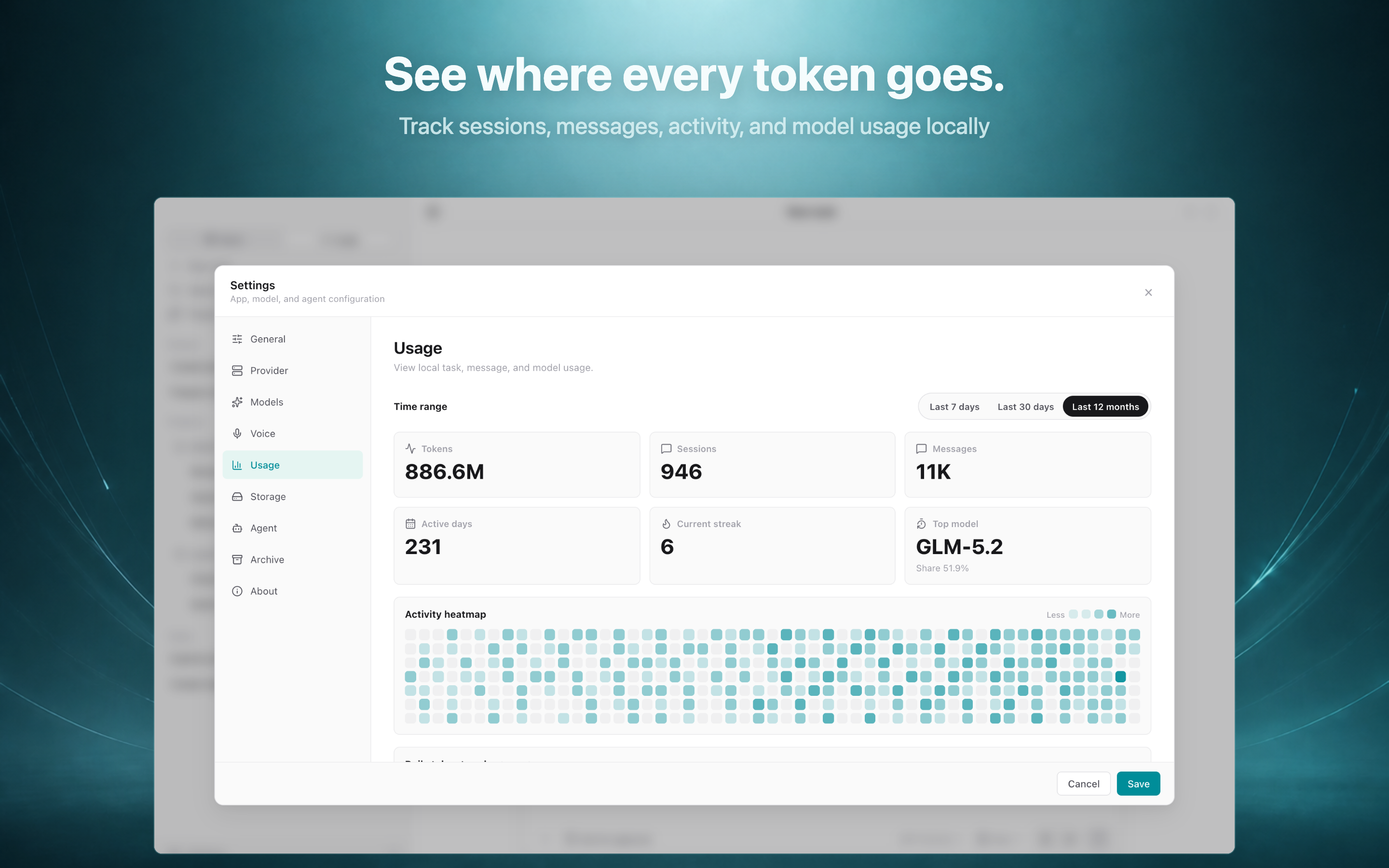
Helix can summarize local task activity, messages, sessions, and model usage so you can understand how the workspace is being used. The values shown in the promotional image are demonstration data.
6. Keep local workspace data under control
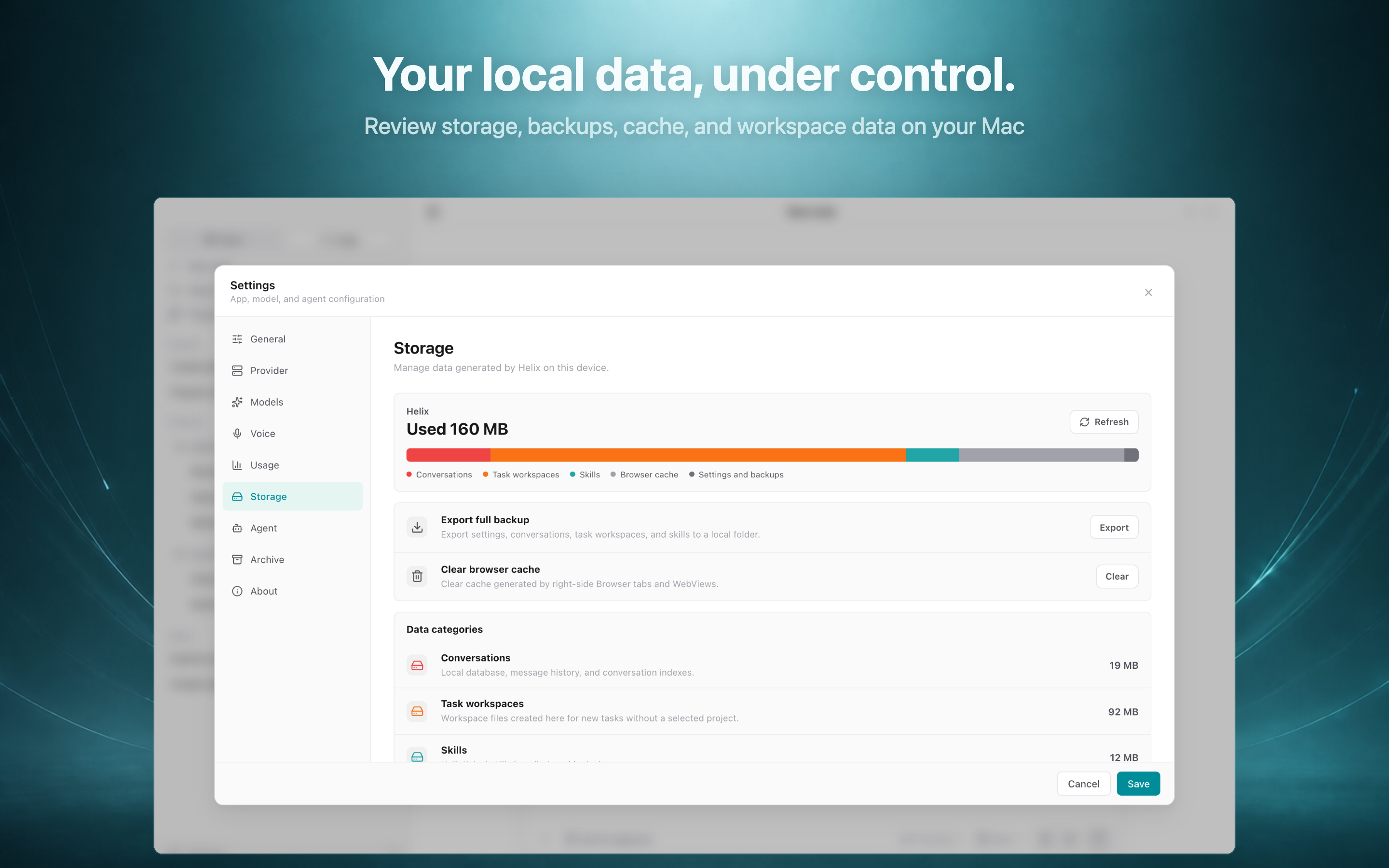
Review the space used by conversations, task workspaces, Skills, browser cache, settings, and backups. Local controls let you export a backup and manage generated data on your Mac.
7. Work in one desktop environment
During a task, Helix can bring together the conversation, execution trace, project files, code and document views, terminal sessions, browser work, and artifact previews. This keeps the reasoning context and the resulting files close together while still letting you inspect what happened.
A typical task moves through this loop:
- Define the goal — describe the outcome and select a workspace.
- Choose the AI stack — select a provider, model, and reasoning level.
- Grant the needed capabilities — use the appropriate Skills, Plugins, MCP tools, browser, or terminal.
- Follow execution — inspect progress, tool calls, retries, and intermediate results.
- Review the deliverable — open the generated file or rendered artifact and continue refining it if needed.
8. Review outcomes, not just chat messages
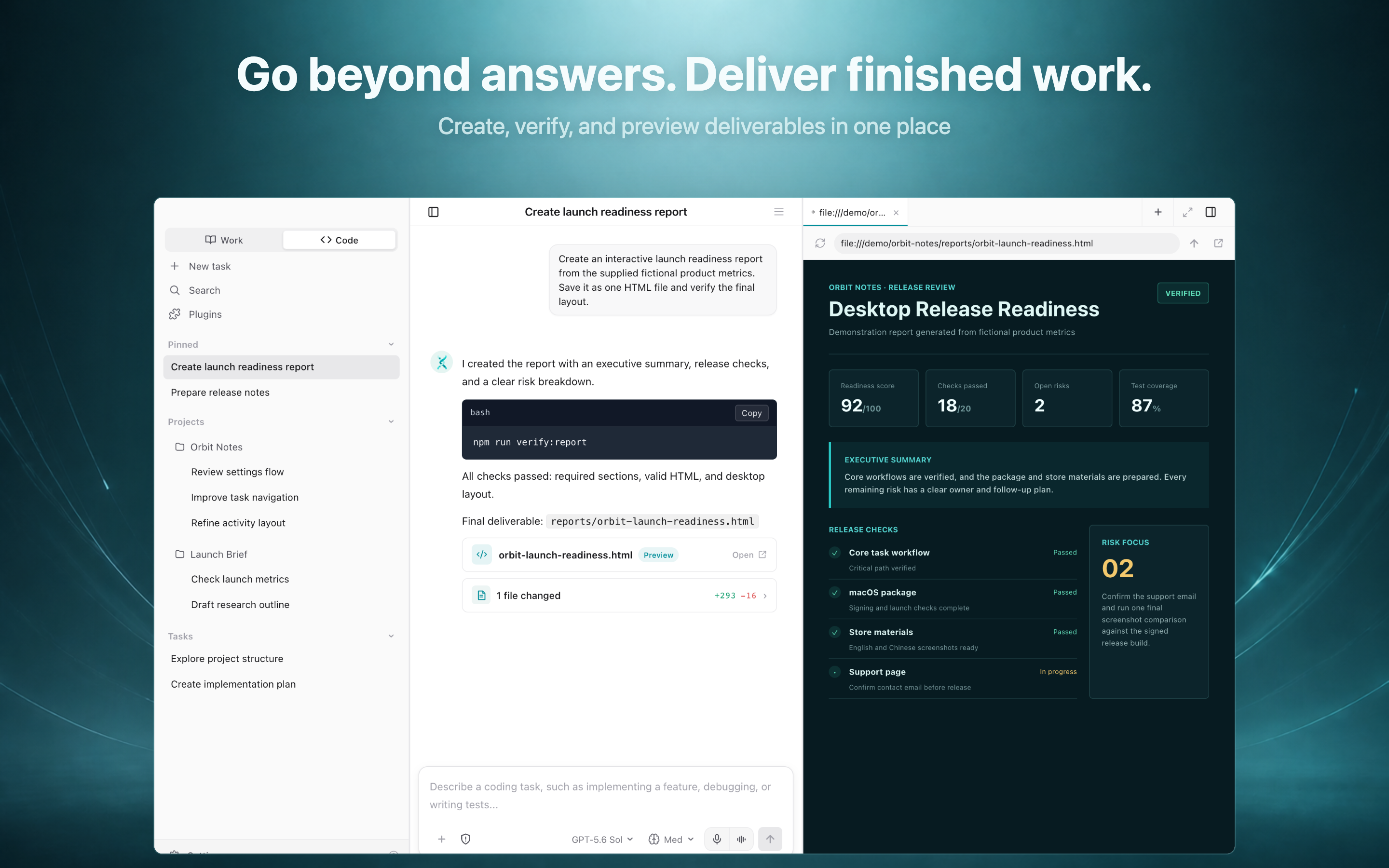
Helix keeps the work product visible. A completed workflow can include:
- a structured execution record;
- tool-call and timing information;
- delivered filenames and integrity metadata;
- previews for supported documents, reports, slides, web pages, and other artifacts;
- a reusable preset for repeating a successful workflow.
The example above is a fictional release-readiness demonstration. It shows how a task can end in a verified HTML report while keeping the execution context and delivered file visible in the same workspace.
Privacy and responsible access
Helix Work collects limited device, product interaction, and diagnostic data as described in the Privacy Policy. Tasks may send prompts, selected files, or other context to providers and integrations you configure.
Before working with sensitive information:
- review the terms and data practices of each provider;
- grant tools access only to the files and services required for the task;
- keep API keys and credentials out of task prompts and shared screenshots;
- inspect generated outputs before publishing or acting on them.
中文导览
Helix Work 是一款面向 macOS 的 AI 工作台,围绕“提出目标—调用工具—跟踪执行—检查产物”的完整工作流程设计。
1. 从任务目标开始
你可以直接描述目标、选择项目工作区、上传图片,或者从研究、数据分析、演示文稿、文档和软件开发等内置工作流开始。每个任务都可以独立选择模型、推理强度、审批模式和工具权限。
2. 自由选择 Provider 与模型
Helix 支持 OpenAI、Anthropic、Azure OpenAI、Google Gemini、DeepSeek、阿里云百炼(DashScope)、Moonshot、OpenRouter、Z.AI、火山方舟、Ollama,以及兼容 OpenAI 接口的自定义或企业网关。
根据相应供应商实际开放情况,可以使用 GPT、Claude、Gemini、DeepSeek、Qwen、Kimi、GLM、Grok 等模型系列,也可以读取账号可用模型或通过 API Model ID 添加模型。
3. 集中选择和管理模型
你可以从已配置的 Provider 读取账号可用模型,通过 API Model ID 添加模型,并按任务启用合适的模型。宣传图中的模型名称和参数属于演示配置,实际可用模型取决于供应商和账号权限。
4. 通过 Plugins、Skills 与 MCP 扩展
Helix 可以按需增加代码与仓库、浏览器研究、数据分析、可观测性、文档、演示文稿、媒体制作、生产力工具和业务系统等能力。实际访问范围取决于安装配置、凭证、任务范围和你授予的权限。
5. 查看本地用量
Helix 可以在本地汇总任务、消息、会话和模型用量,帮助你了解工作区的使用情况。宣传图中的数值为演示数据。
6. 管理本地数据
你可以查看对话、任务工作区、Skills、浏览器缓存、设置和备份占用的空间,并在 Mac 上导出备份或管理生成的数据。
7. 在一个桌面环境中完成工作
典型流程如下:
- 描述目标并选择工作区;
- 选择 Provider、模型和推理强度;
- 启用任务所需的 Skills、Plugins、MCP、浏览器或终端;
- 查看执行进度、工具调用和中间结果;
- 检查最终文件与预览,并继续修改或导出。
8. 以可检查的产物结束
Helix 不只显示聊天消息,还可以保留执行阶段、工具调用、耗时、交付文件和产物预览。上方发布就绪报告使用的是虚构演示数据,不代表任何真实客户、项目或企业。
使用敏感信息前,请阅读隐私政策,了解相应模型供应商和集成服务的数据处理方式,并仅授予任务所必需的权限。